iPhone Wallpaper Dimensions: Exact Pixel Sizes for Every Model
The correct iphone wallpaper size is your model’s display resolution in pixels — nothing more mysterious than that. On the biggest current phone, the iPhone 17 Pro Max, that means an image 1320 × 2868 pixels; on the standard iPhone 17 and 17 Pro it means 1206 × 2622 pixels; and on the long-running 6.1-inch size it means 1179 × 2556 pixels. Match those numbers and the picture fills the screen edge to edge, with no blur and no surprise crop.
Apple publishes no separate wallpaper specification at all. What Apple publishes, on every model’s technical specifications page, is the display resolution — and that published resolution is the wallpaper size, because iOS fits the image to the panel pixel for pixel. Older advice about making the image larger than the screen dates from the old parallax era; modern iOS does not need it, and this guide explains why below.
Below you will find the verified size for every iPhone generation people still use, from the iPhone 17 series down to the iPhone 11 and SE, how to confirm your own model in seconds, why designers talk about a much smaller number called points, and how to resize any photo to fit exactly. Every figure comes from Apple’s own specifications for that model.
What Are iPhone Wallpaper Dimensions?
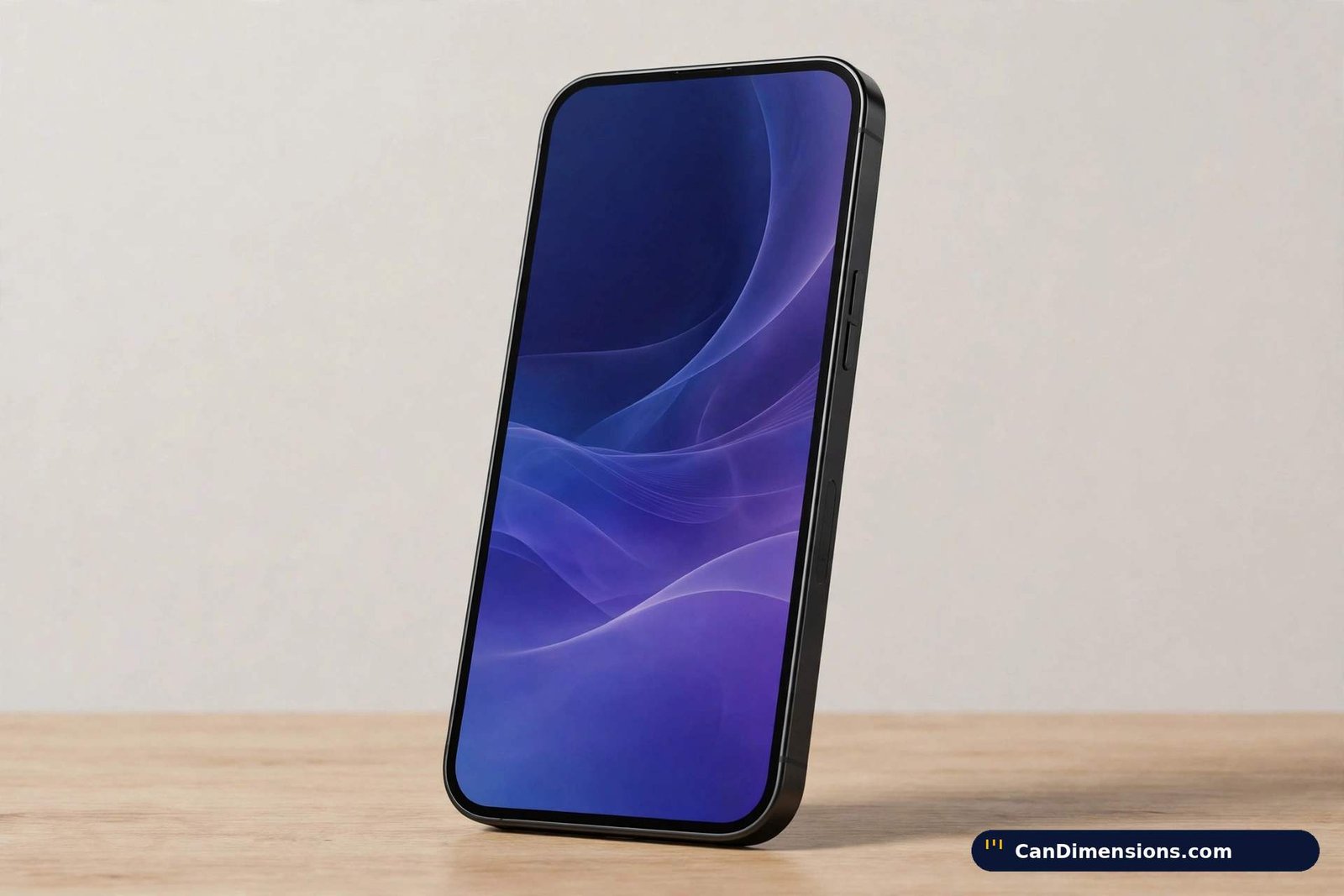
Your iPhone’s native resolution determines the ideal wallpaper size. For example, the iPhone 15 Pro uses 1179 × 2556 pixels. Using images smaller than this creates blur. Using larger images works fine — iOS scales them down without quality loss.
Screen resolution and wallpaper dimensions are the same number on a modern iPhone. One caution about older guides: they often tell you to add extra pixels around the edges for the parallax effect, which shifted the wallpaper slightly as you tilted the phone. That advice is out of date. The pronounced parallax zoom is gone from current iOS, the Lock Screen editor crops to the visible frame, and an image made exactly to the display resolution is the correct, sharp fit. If a chart recommends a wallpaper noticeably larger than the screen, it is repeating the old rule, not an Apple specification — Apple has never published a separate, larger wallpaper size for any model.
Pixel density matters alongside the raw count. Most current iPhones render at 460 pixels per inch, which is why they look so sharp — but not all of them do, and two of the corrections in the chart below are density corrections. The iPhone 11 renders at 326 ppi, the big 12, 13 and 14 Plus and Pro Max models at 458 ppi, and the little 12 mini and 13 mini at 476 ppi, the densest panels Apple has shipped in a phone. A wallpaper does not need a density setting of its own — match the pixel dimensions and the density takes care of itself — but the figures belong in an honest chart.
iPhone 17 Series and iPhone Air (2025)
| Model | Screen | Wallpaper size (portrait) | Density |
|---|---|---|---|
| iPhone 17 Pro Max | 6.9″ | 1320 × 2868 px | 460 ppi |
| iPhone Air | 6.5″ | 1260 × 2736 px | 460 ppi |
| iPhone 17 Pro | 6.3″ | 1206 × 2622 px | 460 ppi |
| iPhone 17 | 6.3″ | 1206 × 2622 px | 460 ppi |
The 17 series is the current lineup, and it is the section the older version of this chart could only guess at. The standard iPhone 17 moved up to the 6.3-inch panel, so it now shares the 1206 × 2622 size with the 17 Pro — a change worth knowing if you are upgrading from a 6.1-inch phone, because your old 1179 × 2556 wallpapers will be slightly upscaled. The iPhone Air is a size of its own at 1260 × 2736, and the Pro Max keeps the largest canvas in the range at 1320 × 2868.
iPhone 16 Series (2024)
| Model | Screen | Wallpaper size (portrait) | Density |
|---|---|---|---|
| iPhone 16 Pro Max | 6.9″ | 1320 × 2868 px | 460 ppi |
| iPhone 16 Pro | 6.3″ | 1206 × 2622 px | 460 ppi |
| iPhone 16 Plus | 6.7″ | 1290 × 2796 px | 460 ppi |
| iPhone 16 | 6.1″ | 1179 × 2556 px | 460 ppi |
| iPhone 16e | 6.1″ | 1170 × 2532 px | 460 ppi |
Note the 16e, which summary charts often leave out: despite sharing the 6.1-inch name, it uses the older 1170 × 2532 panel, not the 1179 × 2556 panel of the iPhone 16. The two sizes differ by only nine pixels in each direction, so a wrong pick still looks fine — but the exact fit is the one in the table.
iPhone 15 Series (2023)
| Model | Screen | Wallpaper size (portrait) | Density |
|---|---|---|---|
| iPhone 15 Pro Max | 6.7″ | 1290 × 2796 px | 460 ppi |
| iPhone 15 Pro | 6.1″ | 1179 × 2556 px | 460 ppi |
| iPhone 15 Plus | 6.7″ | 1290 × 2796 px | 460 ppi |
| iPhone 15 | 6.1″ | 1179 × 2556 px | 460 ppi |
iPhone 14 Series (2022)
| Model | Screen | Wallpaper size (portrait) | Density |
|---|---|---|---|
| iPhone 14 Pro Max | 6.7″ | 1290 × 2796 px | 460 ppi |
| iPhone 14 Pro | 6.1″ | 1179 × 2556 px | 460 ppi |
| iPhone 14 Plus | 6.7″ | 1284 × 2778 px | 458 ppi |
| iPhone 14 | 6.1″ | 1170 × 2532 px | 460 ppi |
The 14 series is where the two families split: the Pro models moved to the 1179 × 2556 and 1290 × 2796 panels, while the standard 14 kept 1170 × 2532 and the 14 Plus used 1284 × 2778 at 458 ppi — not the 460 ppi some charts print for it.
iPhone 13 & 12 Series
| Model | Screen | Wallpaper size (portrait) | Density |
|---|---|---|---|
| iPhone 13 Pro Max / 12 Pro Max | 6.7″ | 1284 × 2778 px | 458 ppi |
| iPhone 13 Pro / 12 Pro | 6.1″ | 1170 × 2532 px | 460 ppi |
| iPhone 13 / 12 | 6.1″ | 1170 × 2532 px | 460 ppi |
| iPhone 13 mini / 12 mini | 5.4″ | 1080 × 2340 px | 476 ppi |
Two corrections live in this table. First, the paired Pro Max models run at 458 ppi per Apple’s specifications, not 460. Second, the minis run at 476 ppi, not 460 — squeezing nearly the Pro’s pixel count into a 5.4-inch panel made them the sharpest iPhones of their years. The standard iPhone 13 and 12, missing from some versions of this chart entirely, use the same 1170 × 2532 size as their Pro counterparts.
iPhone SE & 11 Series
| Model | Screen | Wallpaper size (portrait) | Density |
|---|---|---|---|
| iPhone SE (3rd Gen) | 4.7″ | 750 × 1334 px | 326 ppi |
| iPhone 11 Pro Max | 6.5″ | 1242 × 2688 px | 458 ppi |
| iPhone 11 Pro | 5.8″ | 1125 × 2436 px | 458 ppi |
| iPhone 11 | 6.1″ | 828 × 1792 px | 326 ppi |
The biggest single error in circulating versions of this chart sits in the last row: the iPhone 11 is a 326 ppi Liquid Retina LCD, not a 460 ppi panel. Its 828 × 1792 resolution is correct in those charts; the density printed beside it is not, and it matters if you are comparing sharpness rather than just sizing an image.
iPhone 17 Series and iPhone Air: The Newest Sizes
Because the newest phones are the ones most readers are sizing for, they deserve a plain statement of their own. The iPhone 17, 17 Pro, 17 Pro Max and iPhone Air were released in September 2025, so their sizes are published facts, not expectations: 1206 × 2622 for the 17 and 17 Pro, 1320 × 2868 for the 17 Pro Max, and 1260 × 2736 for the Air, all at 460 ppi per Apple’s technical specifications. Any guide still describing the iPhone 17 as unreleased, or estimating its size from the 16 series, is out of date in a way that changes the answer: the base model’s move from 6.1 to 6.3 inches means last generation’s standard-size wallpaper no longer fits it exactly.
How to Find Your iPhone Wallpaper Dimensions?
Not sure which iPhone you have? Here are four simple ways to find your exact wallpaper dimensions.
Method 1: Check Your Model Number
Go to Settings > General > About. Look for Model Name (shows “iPhone 14 Pro” etc.). Match it to the chart above for instant dimensions.
This takes 10 seconds and gives you the most accurate information. No guessing, no apps needed.
Method 2: The Screenshot Trick
Take a screenshot (press Side Button + Volume Up on Face ID iPhones). Open the Photos app and tap the screenshot. Tap the info icon (i) at the bottom.
You will see dimensions like “1179 × 2556” — that is your perfect wallpaper size, because a screenshot is saved at the display’s native resolution. This method works even if you do not know your model name, and it is the quickest self-check there is: whatever a screenshot measures, your wallpaper should measure the same.
Method 3: Use a Wallpaper Detection App
Apps on the App Store can report your screen dimensions automatically: open one and it shows your exact specs instantly. Treat the result as a cross-check rather than an authority — if an app disagrees with the chart above or with your own screenshot, believe the screenshot, which comes from the phone itself.
Method 4: Check Apple’s Official Specs
Visit Apple’s technical specifications page for your model. Look for the “Display” section to find the native resolution — Apple lists it in landscape order, height first (for example, “2556-by-1179-pixel resolution”), so read the smaller number as the width when you build a portrait wallpaper.
This works great if you bought a secondhand iPhone and want to verify the model before downloading wallpapers.
Points vs Pixels: Why Designers See a Smaller Number
If you have ever opened a design tool and seen an iPhone listed as 393 × 852, you have met the point. A point is the layout unit iOS designs in; the screen then renders each point with a grid of real pixels — three across on every model in the chart above, a relationship called the scale factor, written @3x. So the iPhone 16’s screen is 393 × 852 points and 1179 × 2556 pixels, and both numbers describe the same panel.
Wallpaper is always made in pixels, never points. Export a design at the point size and iOS will stretch it threefold, which is exactly the blur this guide exists to prevent. The older models make the same point at @2x: the iPhone SE (3rd generation) is 375 × 667 points rendered as 750 × 1334 pixels, and the iPhone 11 is 414 × 896 points rendered as 828 × 1792 pixels. Points versus pixels is the single most common reason a carefully designed wallpaper arrives soft — the file was simply built in the wrong unit. It is the same class of mix-up as trusting a can’s printed volume when you need its height, the trap our coke can dimensions guide works through for drinks cans: the headline number and the fit number are rarely the same number.
Should Your Wallpaper Be Bigger Than the Screen?
Short answer: no — not on a modern iPhone. Build the image at exactly the display resolution and keep anything important, such as a face or a focal point, a little inside the edges, because the Lock Screen’s clock and date sit over the top of the image and the editor may trim a sliver when you position it. Making the canvas deliberately larger does not add sharpness; iOS downsamples the extra pixels away. The larger-than-screen recipes still circulating online belong to the parallax era described above, when the wallpaper genuinely moved behind the icons. That movement is no longer how iOS behaves, Reduce Motion has long been a standard accessibility setting, and Apple publishes no oversize wallpaper figure for any model — the display resolution is the whole specification.
How to Resize Any Photo to Your Exact iPhone Wallpaper Size
Start from the largest version of the photo you have; you can always scale down cleanly, and scaling up is where blur comes from. Crop to your model’s aspect ratio first — for nearly every phone in the chart that is 19.5:9 — keeping the subject clear of the top fifth of the frame, where the clock will sit. Then export at the exact pixel size from the chart, as a JPEG or PNG. On the phone, add the image under Settings > Wallpaper, pinch to the fit you want, and check the preview against the clock before saving.
Precision is the entire job here, exactly as it is in our guide to Pokémon card dimensions, where a tenth of a millimetre decides which sleeve a card fits. A wallpaper nine pixels short, like a card a fraction too wide, almost fits — and “almost” is visible every time you look at the screen.
FAQ’s
Is 16:9 wallpaper size?
Only for the older, smaller phones. The iPhone SE models use 750 × 1334, which is a 16:9-class ratio, but every mainstream iPhone from the 12 onward uses a taller ratio of about 19.5:9. A true 16:9 image on a modern iPhone will be cropped at the sides or letterboxed.
What is the iPhone 17 wallpaper size?
The iPhone 17 series is released, and Apple publishes its sizes: the iPhone 17 and 17 Pro are 1206 × 2622 pixels, the iPhone Air is 1260 × 2736 pixels, and the 17 Pro Max is 1320 × 2868 pixels — all at 460 ppi.
Should I use 4:3 or 16:9 on iPhone?
Neither, on a modern iPhone. Current models use about 19.5:9, so build or crop to your model’s exact pixel size from the chart instead of picking a named ratio. Only the SE line still sits near 16:9, and 4:3 belongs to old iPads.
How big is the iPhone 14 wallpaper?
1170 × 2532 pixels for the iPhone 14. The rest of that series: 1284 × 2778 for the 14 Plus, 1179 × 2556 for the 14 Pro, and 1290 × 2796 for the 14 Pro Max.
What is the size of an iPhone 14 screen?
6.1 inches diagonally, at 1170 × 2532 pixels and 460 ppi. Like every iPhone measurement, the 6.1 inches is the diagonal of the display rectangle — not its height or width.
Which iPhone has a 6.9 display?
Two generations now: the iPhone 16 Pro Max introduced the 6.9-inch display, and the iPhone 17 Pro Max keeps it. Both use the same 1320 × 2868 resolution at 460 ppi, so wallpapers swap between them exactly.
How to make picture fit wallpaper on iPhone 14?
Open Settings > Wallpaper > Add New Wallpaper, choose the photo, then pinch to zoom and drag to position it so the subject clears the clock area. For an exact fit with no zoom at all, crop the photo to 1170 × 2532 pixels first.
How to make iPhone 14 wallpaper?
Set a canvas to 1170 × 2532 pixels in any editor, place your design with the top fifth kept clear, and export as PNG for graphics or JPEG for photos. Send it to the phone by AirDrop or iCloud Photos, then apply it under Settings > Wallpaper.
Conclusion
Every iPhone wallpaper question reduces to one published number: the display resolution on Apple’s specification page for your model. For most phones in use today that number is one of five sizes — 1320 × 2868, 1290 × 2796, 1284 × 2778, 1206 × 2622 or 1179 × 2556 — with the minis, the SE and the iPhone 11 as the smaller exceptions, and the iPhone Air’s 1260 × 2736 as the one genuinely new size of the latest generation. Build at exactly that size, in pixels rather than points, and the image will be as sharp as the screen itself.
Check your model under Settings > General > About, confirm it with a screenshot if you are in any doubt, and distrust any chart that gives the iPhone 11 a 460 ppi screen or still calls the iPhone 17 unreleased — small errors in a copied table are how the wrong size ends up on your phone. Get the dimensions right and the humble wallpaper becomes what it should be: the sharpest picture your iPhone owns.